Claude and ChatGPT for recruiters: phone screening to client write-up
Phone screening questions built from the job spec get the answers a hiring manager decides on, especially in technical roles. How to make them with Claude or ChatGPT and turn the call into the client write-up, with prompts to copy.
Why role-specific questions get candidates interviewed
A standard screening sheet covers what every client asks: pay, notice, location and why the candidate is moving. The hiring manager decides on something else: whether the candidate has done the work the role needs. Questions built from the job spec get those answers on the call, and they're what make a client want to speak to the candidate.
The gap is widest in technical roles. For a controls engineer, compare:
- A generic sheet: current role, years of experience, salary, notice period.
- A sheet built from the spec: Siemens or Allen-Bradley PLCs, commissioning on site or support only, which SCADA systems, food safety standards such as BRCGS.
"Commissioned two bottling lines on Siemens S7 last year" tells a hiring manager whether to take the call. "Six years in automation" doesn't.
Step 1: Ask for the screening questions
With Sorinai connected to Claude or ChatGPT (how to connect it), attach or paste the job spec and ask:
- "Make a Sorinai template for phone screening candidates for this role. Start with the questions in my usual phone screen template, then add the client's must-haves from the job spec."
It reads your existing templates and the spec, then shows the draft as a card in the chat: the template's name and its first few questions. Press Edit to see them all and add or remove questions, or ask for changes in the chat. Nothing is saved yet.
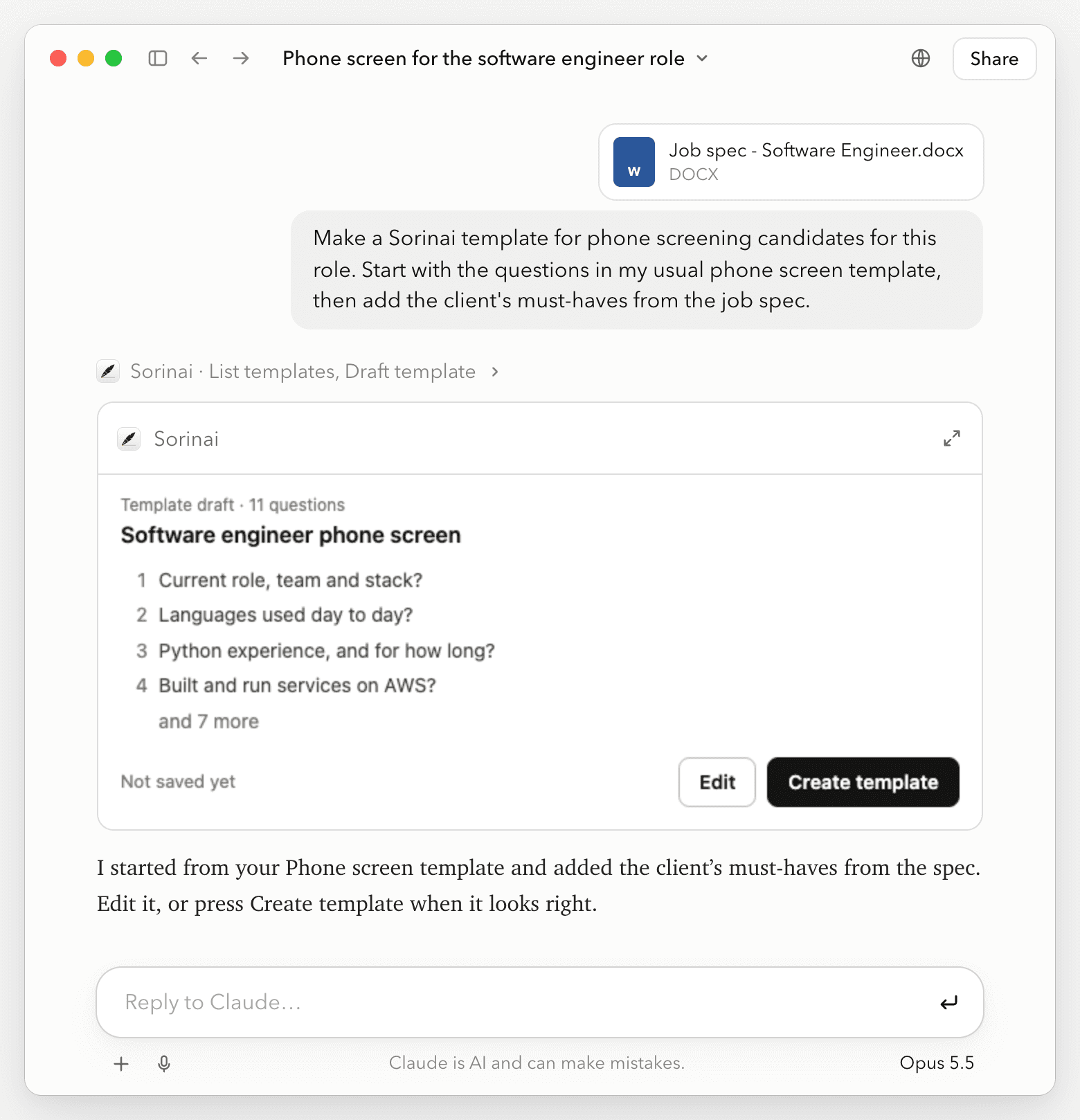
Step 2: Save them as a template
Press Create template, or tell Claude or ChatGPT to save it. The card shows Added to Sorinai, and the template appears in your Sorinai app straight away.
Make one per role, or a version per client, with the same prompt.
Step 3: Take the phone screen
Pick the template under Notes Template when you start a new note, then call the candidate as normal. Sorinai picks up the call from your computer's audio, so no bot joins. Tell the candidate at the start that you're using an AI note taker (what to say).
Each question ticks off as it's answered, so what's still open is what you haven't asked yet:
Answers come with the words the candidate used, so you can check them before anything goes to the client. Forgot to pick the template? Choose it afterwards under Select template on the meeting page, and it fills in from the same call.
Step 4: Write it up for the client
After the call, Copy template puts the questions and answers on your clipboard for your ATS. The answers also arrive in the follow-up email Sorinai sends after the call.
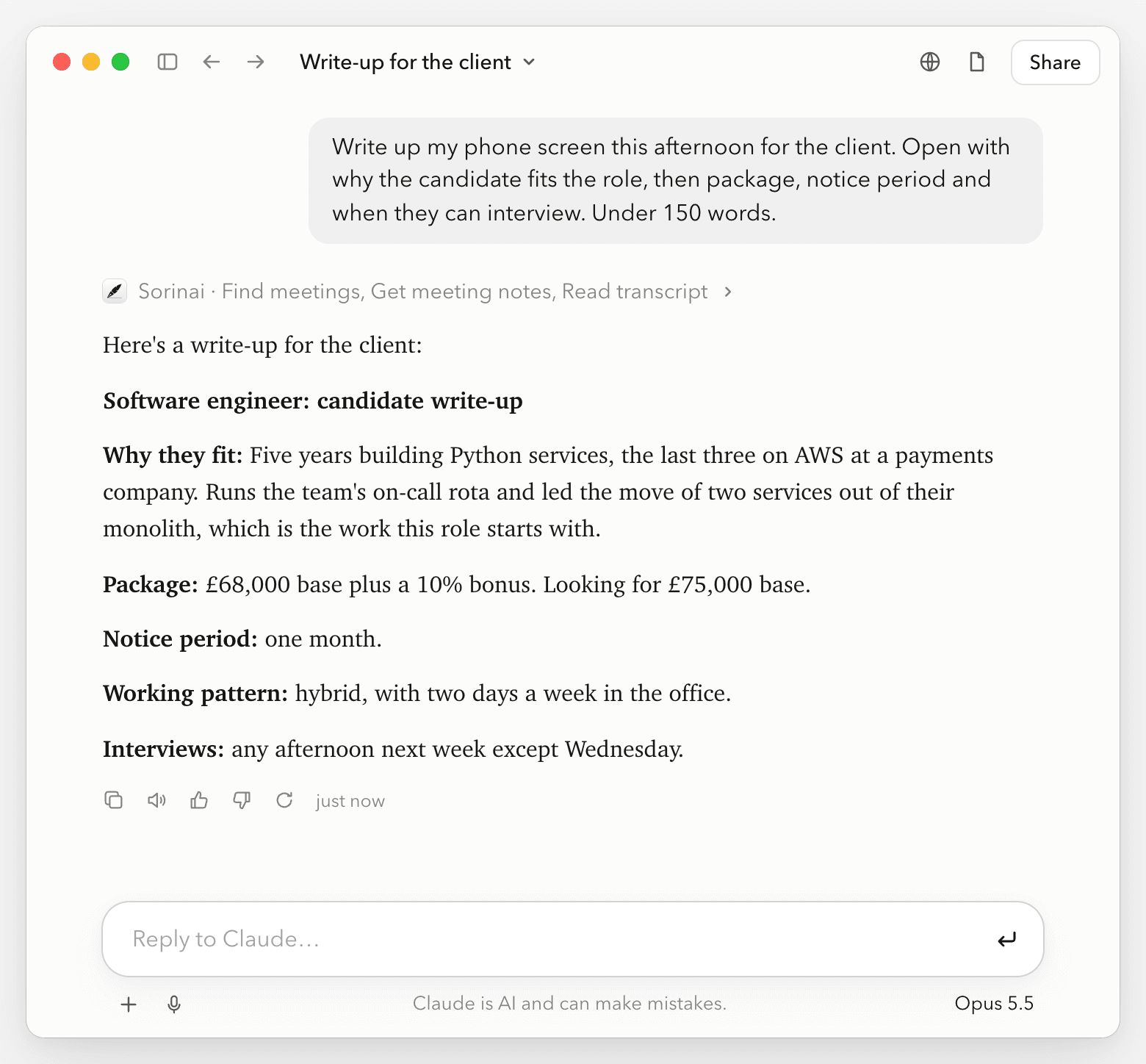
For the client, ask Claude or ChatGPT:
- "Write up my call with [candidate] today for the client. Open with why they fit the role, then package and notice period. Under 150 words."
It reads the call's answers and transcript in Sorinai and writes it in your order. Because the screen covered the client's must-haves, the write-up can lead with them. Check the figures against the answers before you send it. What a good write-up covers is in our candidate summary template.
Prompts to copy
These work in Claude or ChatGPT once Sorinai is connected. Swap your own details into the brackets.
Before the call:
- "Make a Sorinai template for phone screening a [role] from this job spec. Ask about the specific tools and qualifications it names, not years of experience."
- "Make a version of my phone screen template for [client], with their must-haves added: [must-haves]."
- "Make a Sorinai template for my intake call with the hiring manager for [role]."
The intake call has its own set of questions to cover, and our guide to intake meetings lists them.
After the call:
- "Write up my call with [candidate] today for the client, in this format: [your format]."
- "Which of the candidates I screened for [role] this week can start within a month?"
If your agency has its own screening sheet
If your desk already screens from its own form in Word or PDF, upload that to Sorinai instead. Sorinai answers each field on it during the call, then gives you the same file to download with the answers written in. Phone screening notes shows it with a filled example.
Claude and ChatGPT for recruiters FAQ
Do I need Claude or ChatGPT?
No. The chat inside Sorinai makes templates too, and saves them straight away, with a View button to open the new one. You can also build one yourself on the Templates page, or upload your own Word or PDF form.
Can I make a template from a call I've already had?
Yes. Open the meeting in Sorinai and ask its chat to make a template from this call. It writes the questions from what that call covered, ready for the next one like it.
Can I change the questions later?
Yes. Open the template on Sorinai's Templates page and edit the questions there.
Does it work on calls from my mobile?
Yes, as long as you make the call from your computer, on a softphone or WhatsApp on your laptop, for example. Sorinai can't hear a call made on the handset itself.
